Continuous Monitoring Pipeline#
Autor(en): 

Dieses Tutorial beschreibt einen fortgeschrittenen Anwendungsfall für das Ausführen von Flows in Azure ML Pipelines.
Die detaillierten Erklärungen zu den Voraussetzungen und Prinzipien finden Sie im oben genannten Artikel. Eine kontinuierliche Überwachung ist notwendig, um die Qualität, Leistung und Effizienz von Generative AI-Anwendungen aufrechtzuerhalten.
Diese Faktoren wirken sich direkt auf die Benutzererfahrung und die Betriebskosten aus.
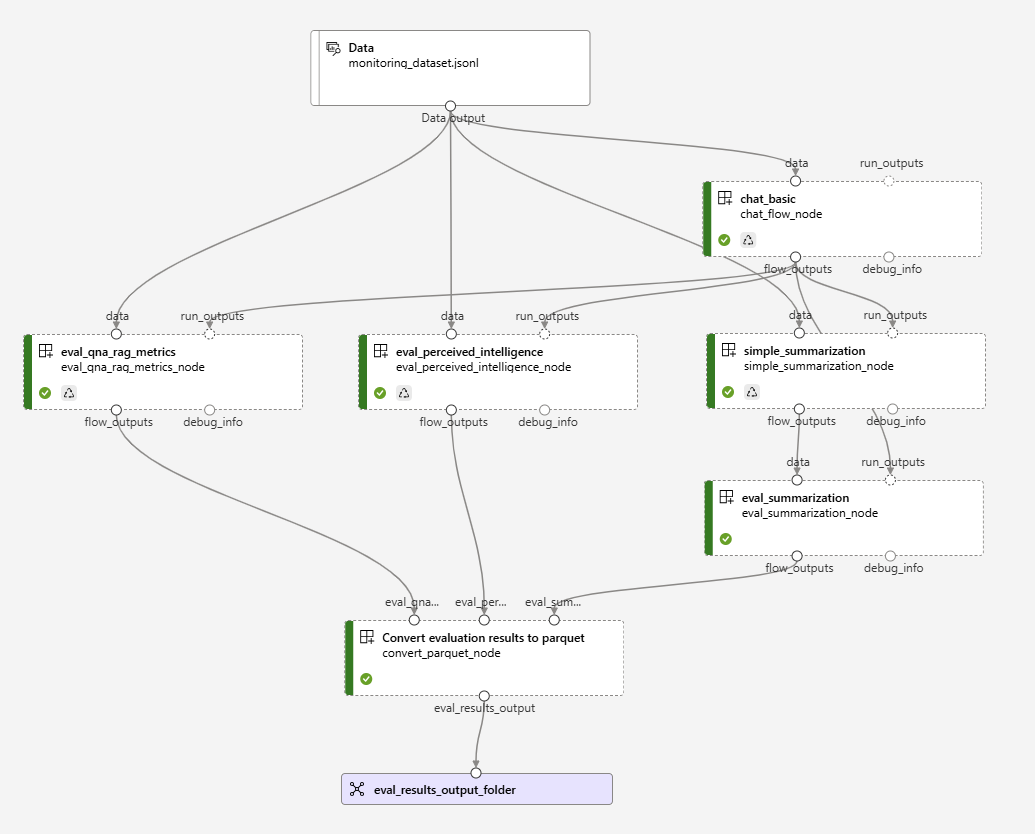
Wir werden Auswertungen für einen einfachen Chatbot-Flow ausführen, dann die Ergebnisse aggregieren, um die Metriken zu exportieren und zu visualisieren.
Die in dieser Pipeline verwendeten Flows werden nachfolgend beschrieben
1.1 Die erforderlichen Bibliotheken importieren#
Installieren Sie die erforderlichen Python-Pakete#
Stellen Sie sicher, dass die Version von 'azure-ai-ml' höher als 1.12.0 ist
# import required libraries
from azure.identity import DefaultAzureCredential, InteractiveBrowserCredential
from azure.ai.ml import MLClient, load_component, Input, Output
from azure.ai.ml.constants import AssetTypes
from azure.ai.ml.dsl import pipeline
from datetime import datetime
1.2 Anmeldeinformationen konfigurieren#
try:
    credential = DefaultAzureCredential()
    # Check if given credential can get token successfully.
    credential.get_token("https://management.azure.com/.default")
except Exception as ex:
    # Fall back to InteractiveBrowserCredential in case DefaultAzureCredential not work
    credential = InteractiveBrowserCredential()
1.3 Ein Handle für den Arbeitsbereich erhalten#
# Get a handle to workspace
ml_client = MLClient.from_config(credential=credential)
1.4.1 Einfachen Chat-Flow validieren#
Importieren Sie die erforderlichen Paketdateien für den Flow#
pip install -r ../../../flows/chat/chat-basic/requirements.txt
!pf flow validate --source ../../../flows/chat/chat-basic
1.4.2 QnA RAG-Evaluierungs-Flow validieren#
Importieren Sie die erforderlichen Paketdateien für den Flow#
pip install -r ../../../flows/evaluation/eval-qna-rag-metrics/requirements.txt
!pf flow validate --source ../../../flows/evaluation/eval-qna-rag-metrics
1.4.3 Wahrgenommene Intelligenz-Evaluierungs-Flow validieren#
Importieren Sie die erforderlichen Paketdateien für den Flow#
pip install -r ../../../flows/evaluation/eval-perceived-intelligence/requirements.txt
!pf flow validate --source ../../../flows/evaluation/eval-perceived-intelligence
1.4.4 Zusammenfassungs-Flow validieren#
pip install -r ../flows/standard/simple-summarization/requirements.txt
!pf flow validate --source ./flows/standard/simple-summarization
1.4.5 Zusammenfassungs-Evaluierungs-Flow validieren#
pip install -r ../../../flows/evaluation/eval-summarization/requirements.txt
!pf flow validate --source ../../../flows/evaluation/eval-summarization
2. Chat-Flow als Komponente laden#
chat_flow_component = load_component("../../../flows/chat/chat-basic/flow.dag.yaml")
2.1 QnA RAG-Evaluierungs-Flow als Komponente laden#
eval_qna_rag_metrics_component = load_component(
    "../../../flows/evaluation/eval-qna-rag-metrics/flow.dag.yaml"
)
2.2 Wahrgenommener Intelligenz-Flow als Komponente laden#
eval_perceived_intelligence_component = load_component(
    "../../../flows/evaluation/eval-perceived-intelligence/flow.dag.yaml"
)
2.3 Zusammenfassungs-Flow als Komponente laden#
simple_summarization_component = load_component(
    "./flows/standard/simple-summarization/flow.dag.yaml"
)
2.4 Zusammenfassungs-Evaluierungs-Flow als Komponente laden#
eval_summarization_component = load_component(
    "../../../flows/evaluation/eval-summarization/flow.dag.yaml"
)
2.3 Parquet-Konverter laden#
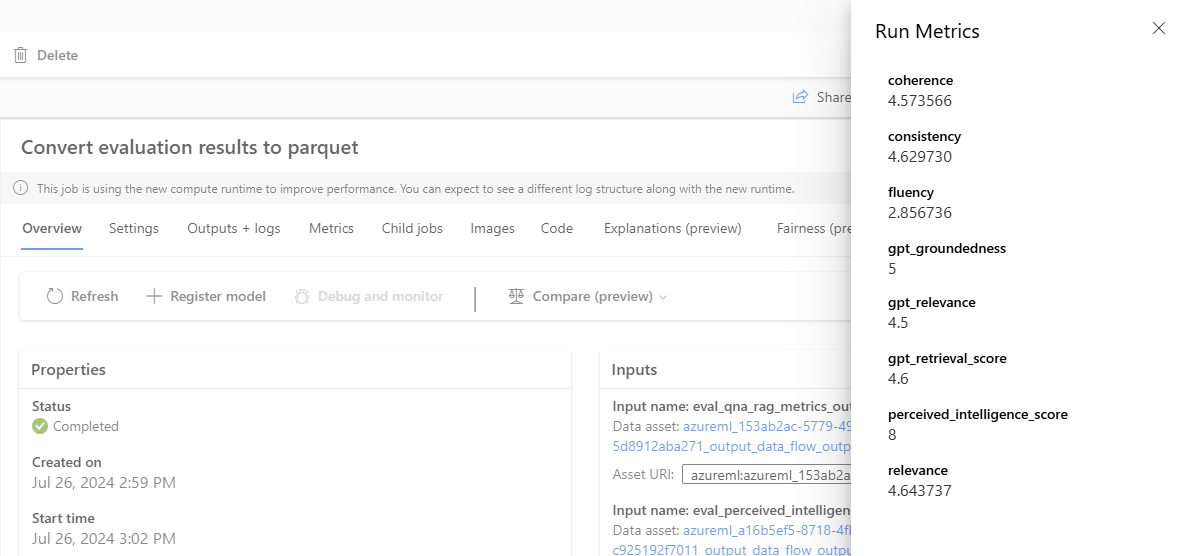
Der Parquet-Konverter ist eine Befehlskomponente, die die Ergebnisse des Auswertungs-Nodes aggregiert und die Metriken in ML Pipelines protokolliert.
convert_parquet_component = load_component(
    "./components/convert_parquet/convert_parquet.yaml"
)
3.1 Eingabe und Ausgabe deklarieren#
data_input = Input(
    path="./data/monitoring_dataset.jsonl",
    type=AssetTypes.URI_FILE,
    mode="mount",
)

eval_results_output = Output(
    # Provide custom flow output file path if needed
    # path="azureml://datastores/<data_store_name>/paths/<path>",
    type=AssetTypes.URI_FOLDER,
    # rw_mount is suggested for flow output
    mode="rw_mount",
)
3.2.1 Pipeline mit Einzel-Flow-Komponente ausführen#
# Define the pipeline as a function
@pipeline()
def continuous_monitoring(
    # Function inputs will be treated as pipeline input data or parameters.
    # Pipeline input could be linked to step inputs to pass data between steps.
    # Users are not required to define pipeline inputs.
    # With pipeline inputs, user can provide the different data or values when they trigger different pipeline runs.
    pipeline_input_data: Input,
    parallel_node_count: int = 1,
):
    # Declare pipeline step 'flow_node' by using flow component
    chat_flow_node = chat_flow_component(
        # Bind the pipeline input data to the port 'data' of the flow component
        # If you don't have pipeline input, you can directly pass the 'data_input' object to the 'data'
        # But with this approach, you can't provide different data when you trigger different pipeline runs.
        data=pipeline_input_data,
        # Declare which column of input data should be mapped to flow input
        # the value pattern follows ${data.<column_name_from_data_input>}
        chat_history="${data.chat_history}",
        question="${data.question}",
        # Provide the connection values of the flow component
        # The value of connection and deployment_name should align with your workspace connection settings.
        connections={
            "chat": {
                "connection": "azure_open_ai_connection",
                "deployment_name": "gpt-35-turbo",
            }
        },
    )

    # Provide run settings of your flow component
    # Only 'compute' is required and other setting will keep default value if not provided.
    # If the workspace has been created with Azure AI Studio is inside a hub,
    # a Compute Cluster cannot be used, use a Serverless instance instead.
    chat_flow_node.environment_variables = {
        "PF_INPUT_FORMAT": "jsonl",
    }
    chat_flow_node.compute = "serverless"
    chat_flow_node.resources = {"instance_count": parallel_node_count}
    chat_flow_node.mini_batch_size = 5
    chat_flow_node.max_concurrency_per_instance = 2
    chat_flow_node.retry_settings = {
        "max_retries": 1,
        "timeout": 1200,
    }
    chat_flow_node.error_threshold = -1
    chat_flow_node.mini_batch_error_threshold = -1
    chat_flow_node.logging_level = "DEBUG"

    # QnA RAG Metrics Evaluation Node
    eval_qna_rag_metrics_node = eval_qna_rag_metrics_component(
        # Bind the pipeline input data to the port 'data' of the flow component
        # If you don't have pipeline input, you can directly pass the 'data_input' object to the 'data'
        # But with this approach, you can't provide different data when you trigger different pipeline runs.
        data=pipeline_input_data,
        # run_outputs connects the output of a previous node
        run_outputs=chat_flow_node.outputs.flow_outputs,
        # Declare which column of input data should be mapped to flow input
        # the value pattern follows ${data.<column_name_from_data_input>}
        documents="${data.documents}",
        question="${data.question}",
        # Declare which column of previous node output should be mapped to flow input
        # the value pattern follows ${run.outputs.<column_name_from_data_input>}
        answer="${run.outputs.answer}",
        # Provide the connection values of the flow component
        # The value of connection and deployment_name should align with your workspace connection settings.
        connections={
            "gpt_groundedness": {
                "connection": "azure_open_ai_connection",
                "deployment_name": "gpt-35-turbo",
            },
            "gpt_relevance": {
                "connection": "azure_open_ai_connection",
                "deployment_name": "gpt-35-turbo",
            },
            "gpt_retrieval_score": {
                "connection": "azure_open_ai_connection",
                "deployment_name": "gpt-35-turbo",
            },
        },
    )

    # Provide run settings of your flow component
    # Only 'compute' is required and other setting will keep default value if not provided.
    # If the workspace has been created with Azure AI Studio is inside a hub,
    # a Compute Cluster cannot be used, use a Serverless instance instead.
    eval_qna_rag_metrics_node.environment_variables = {
        "PF_INPUT_FORMAT": "jsonl",
    }
    eval_qna_rag_metrics_node.compute = "serverless"
    eval_qna_rag_metrics_node.resources = {"instance_count": parallel_node_count}
    eval_qna_rag_metrics_node.mini_batch_size = 5
    eval_qna_rag_metrics_node.max_concurrency_per_instance = 2
    eval_qna_rag_metrics_node.retry_settings = {
        "max_retries": 1,
        "timeout": 1200,
    }
    eval_qna_rag_metrics_node.error_threshold = -1
    eval_qna_rag_metrics_node.mini_batch_error_threshold = -1
    eval_qna_rag_metrics_node.logging_level = "DEBUG"

    # Perceived Intelligence Evaluation Node
    eval_perceived_intelligence_node = eval_perceived_intelligence_component(
        # Bind the pipeline input data to the port 'data' of the flow component
        # If you don't have pipeline input, you can directly pass the 'data_input' object to the 'data'
        # But with this approach, you can't provide different data when you trigger different pipeline runs.
        data=pipeline_input_data,
        # run_outputs connects the output of a previous node
        run_outputs=chat_flow_node.outputs.flow_outputs,
        # Declare which column of input data should be mapped to flow input
        # the value pattern follows ${data.<column_name_from_data_input>}
        question="${data.question}",
        context="${data.context}",
        # Declare which column of previous node output should be mapped to flow input
        # the value pattern follows ${run.outputs.<column_name_from_data_input>}
        answer="${run.outputs.answer}",
        # Provide the connection values of the flow component
        # The value of connection and deployment_name should align with your workspace connection settings.
        connections={
            "gpt_perceived_intelligence": {
                "connection": "azure_open_ai_connection",
                "deployment_name": "gpt-35-turbo",
            }
        },
    )

    # Provide run settings of your flow component
    # Only 'compute' is required and other setting will keep default value if not provided.
    # If the workspace has been created with Azure AI Studio is inside a hub,
    # a Compute Cluster cannot be used, use a Serverless instance instead.
    eval_perceived_intelligence_node.environment_variables = {
        "PF_INPUT_FORMAT": "jsonl",
    }
    eval_perceived_intelligence_node.compute = "serverless"
    eval_perceived_intelligence_node.resources = {"instance_count": parallel_node_count}
    eval_perceived_intelligence_node.mini_batch_size = 5
    eval_perceived_intelligence_node.max_concurrency_per_instance = 2
    eval_perceived_intelligence_node.retry_settings = {
        "max_retries": 1,
        "timeout": 1200,
    }
    eval_perceived_intelligence_node.error_threshold = -1
    eval_perceived_intelligence_node.mini_batch_error_threshold = -1
    eval_perceived_intelligence_node.logging_level = "DEBUG"

    # Summarization Node
    simple_summarization_node = simple_summarization_component(
        # Bind the pipeline input data to the port 'data' of the flow component
        # If you don't have pipeline input, you can directly pass the 'data_input' object to the 'data'
        # But with this approach, you can't provide different data when you trigger different pipeline runs.
        data=pipeline_input_data,
        # run_outputs connects the output of a previous node
        run_outputs=chat_flow_node.outputs.flow_outputs,
        # Declare which column of previous node output should be mapped to flow input
        # the value pattern follows ${run.outputs.<column_name_from_data_input>}
        answer="${run.outputs.answer}",
        # Provide the connection values of the flow component
        # The value of connection and deployment_name should align with your workspace connection settings.
        connections={
            "summarize_text_content": {
                "connection": "azure_open_ai_connection",
                "deployment_name": "gpt-35-turbo",
            }
        },
    )

    # Provide run settings of your flow component
    # Only 'compute' is required and other setting will keep default value if not provided.
    # If the workspace has been created with Azure AI Studio is inside a hub,
    # a Compute Cluster cannot be used, use a Serverless instance instead.
    simple_summarization_node.environment_variables = {
        "PF_INPUT_FORMAT": "jsonl",
    }
    simple_summarization_node.compute = "serverless"
    simple_summarization_node.resources = {"instance_count": parallel_node_count}
    simple_summarization_node.mini_batch_size = 5
    simple_summarization_node.max_concurrency_per_instance = 2
    simple_summarization_node.retry_settings = {
        "max_retries": 1,
        "timeout": 1200,
    }
    simple_summarization_node.error_threshold = -1
    simple_summarization_node.mini_batch_error_threshold = -1
    simple_summarization_node.logging_level = "DEBUG"

    # Summarization Evaluation Node
    eval_summarization_node = eval_summarization_component(
        # Bind the pipeline input data to the port 'data' of the flow component
        # If you don't have pipeline input, you can directly pass the 'data_input' object to the 'data'
        # But with this approach, you can't provide different data when you trigger different pipeline runs.
        data=simple_summarization_node.outputs.flow_outputs,
        # run_outputs connects the output of a previous node
        run_outputs=chat_flow_node.outputs.flow_outputs,
        # Declare which column of input data should be mapped to flow input
        # the value pattern follows ${data.<column_name_from_data_input>}
        summary="${data.summary}",
        # Declare which column of previous node output should be mapped to flow input
        # the value pattern follows ${run.outputs.<column_name_from_data_input>}
        document="${run.outputs.answer}",
        # Provide the connection values of the flow component
        # The value of connection and deployment_name should align with your workspace connection settings.
        connections={
            "score_fluency": {
                "connection": "azure_open_ai_connection",
            },
            "score_consistency": {
                "connection": "azure_open_ai_connection",
            },
            "score_relevance": {
                "connection": "azure_open_ai_connection",
            },
            "score_coherence": {
                "connection": "azure_open_ai_connection",
            },
        },
    )

    # Provide run settings of your flow component
    # Only 'compute' is required and other setting will keep default value if not provided.
    # If the workspace has been created with Azure AI Studio is inside a hub,
    # a Compute Cluster cannot be used, use a Serverless instance instead.
    eval_summarization_node.environment_variables = {
        "PF_INPUT_FORMAT": "jsonl",
    }
    eval_summarization_node.compute = "serverless"
    eval_summarization_node.resources = {"instance_count": parallel_node_count}
    eval_summarization_node.mini_batch_size = 5
    eval_summarization_node.max_concurrency_per_instance = 2
    eval_summarization_node.retry_settings = {
        "max_retries": 1,
        "timeout": 1200,
    }
    eval_summarization_node.error_threshold = -1
    eval_summarization_node.mini_batch_error_threshold = -1
    eval_summarization_node.logging_level = "DEBUG"

    convert_parquet_node = convert_parquet_component(
        # Bind the evaluation nodes outputs to the command component's input
        eval_qna_rag_metrics_output_folder=eval_qna_rag_metrics_node.outputs.flow_outputs,
        eval_perceived_intelligence_output_folder=eval_perceived_intelligence_node.outputs.flow_outputs,
        eval_summarization_output_folder=eval_summarization_node.outputs.flow_outputs,
    )

    # Provide run settings of your flow component
    # Only 'compute' is required and other setting will keep default value if not provided.
    # If the workspace has been created with Azure AI Studio is inside a hub,
    # a Compute Cluster cannot be used, use a Serverless instance instead.
    convert_parquet_node.compute = "serverless"
    # Function return will be treated as pipeline output. This is not required.
    return {
        "eval_results_output_folder": convert_parquet_node.outputs.eval_results_output
    }


# create pipeline instance
pipeline_job_def = continuous_monitoring(pipeline_input_data=data_input)
pipeline_job_def.outputs.eval_results_output_folder = eval_results_output
3.2.2 Den Job übermitteln#
# Submit the pipeline job to your workspace
pipeline_job_run = ml_client.jobs.create_or_update(
    pipeline_job_def, experiment_name="Continuous Monitoring"
)
pipeline_job_run

ml_client.jobs.stream(pipeline_job_run.name)
4.1 Nächster Schritt – Scheduler für Ihre Pipeline einrichten#
from datetime import datetime
from azure.ai.ml.entities import JobSchedule, RecurrenceTrigger, RecurrencePattern
from azure.ai.ml.constants import TimeZone

schedule_name = "simple_sdk_create_schedule_recurrence"
schedule_start_time = datetime.utcnow()

recurrence_trigger = RecurrenceTrigger(
    frequency="day",  # could accept "hour", "minute", "day", "week", "month"
    interval=1,
    schedule=RecurrencePattern(hours=10, minutes=[0, 1]),
    start_time=schedule_start_time,
    time_zone=TimeZone.UTC,
)

job_schedule = JobSchedule(
    name=schedule_name,
    trigger=recurrence_trigger,
    # Declare the pipeline job to be scheduled. Here we uses the pipeline job created in previous example.
    create_job=pipeline_job_def,
)
Den Scheduler initiieren#
job_schedule = ml_client.schedules.begin_create_or_update(
    schedule=job_schedule
).result()
print(job_schedule)
Zum Deaktivieren oder Herunterfahren eines laufenden Schedulers#
job_schedule = ml_client.schedules.begin_disable(name=schedule_name).result()
job_schedule.is_enabled
4.2 Nächster Schritt – Pipeline zu einem Endpunkt bereitstellen#
from azure.ai.ml.entities import BatchEndpoint, PipelineComponentBatchDeployment

# from azure.ai.ml.entities import ModelBatchDeployment, ModelBatchDeploymentSettings, Model, AmlCompute, Data, BatchRetrySettings, CodeConfiguration, Environment, Data
# from azure.ai.ml.constants import BatchDeploymentOutputAction


endpoint_name = "hello-my-pipeline-endpoint"
endpoint = BatchEndpoint(
    name=endpoint_name,
    description="A hello world endpoint for pipeline",
)

ml_client.batch_endpoints.begin_create_or_update(endpoint).result()